


Default
Door staff@engadget.com (Thomas Godwin) - 28 Aug 2026
Before you do anything, you need to download the audio file for the sound or clip you want to play. Create a folder in the Files app on your iPhone (not in iCloud Drive) with a name that's easy to locate from the Shortcuts app and save your file to that folder.
Open the Shortcuts app.
Tap the "Automation" icon at the bottom center of the screen.
If you have no previous automations, select "New Automation" or tap the + icon at the top right of the screen.
Tap CarPlay (usually in the middle of the list, but you can search for it in the search box).
Tap "Is Connected" if it's not already highlighted and select "Run Immediately," followed by "Next."
Tap "Create New Shortcut."
Scroll down and tap "Files."
There are several options here, but just select the tab labeled "File."
Now, you'll see a faded blue File button next to the file symbol at the top. Tap the File button.
Browse through your folders until you find the one you created and open it.
Select the sound effect within the folder.
Tap the blue checkmark at the top right, and you're all set.
Keep in mind that these steps can vary slightly depending on your iPhone model and iOS version. Shortcuts support goes all the way back to the iPhone 5s, so older compatible models may display Shortcuts options in a different order or with slightly different labels.
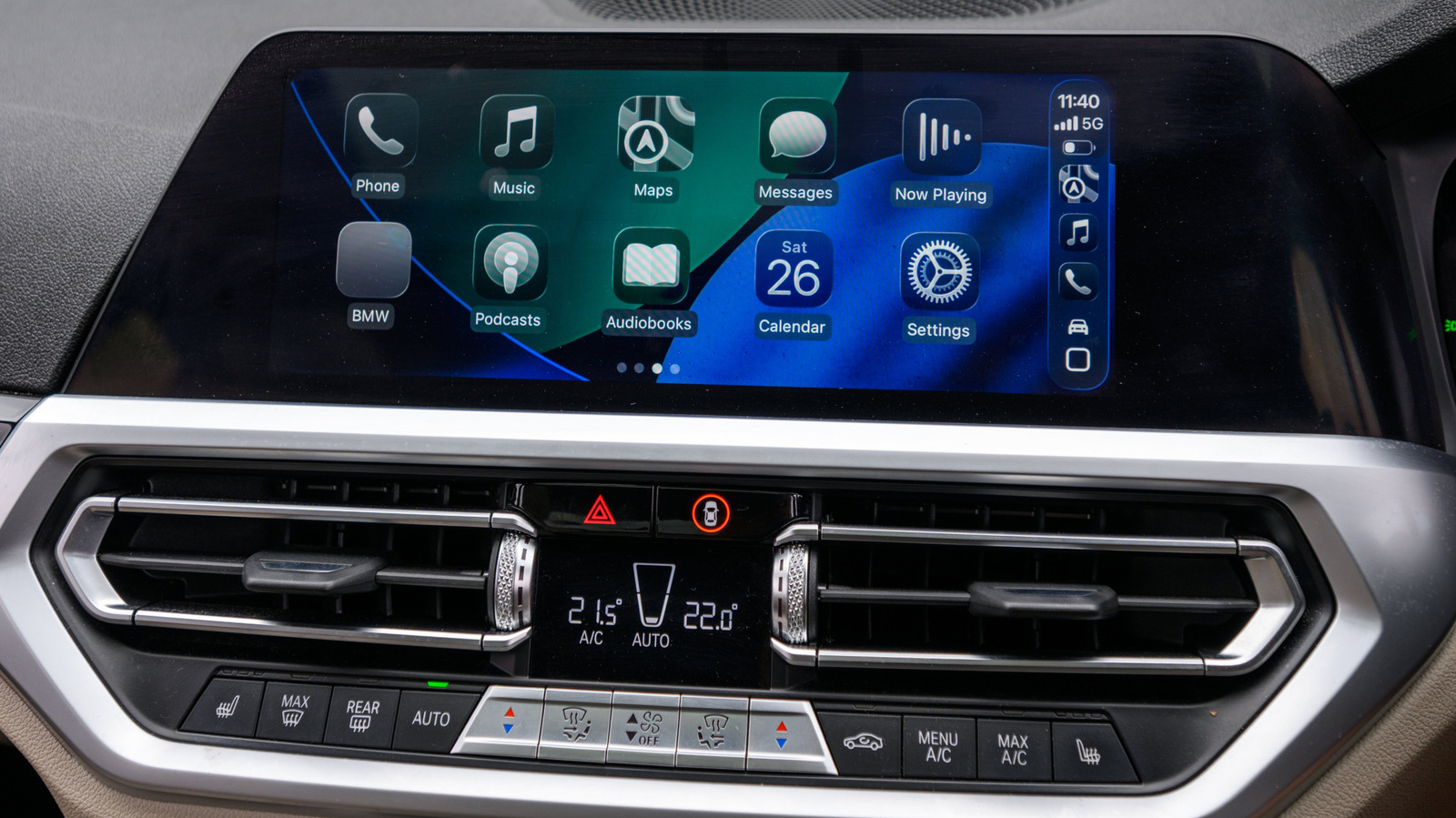
Now there's nothing left but to test it out on your car. Connect to CarPlay and listen for your clip. If it plays too loudly or too softly, make adjustments on your iPhone accordingly. Your iPhone may use the original volume levels from the recording when the action runs.
Open the Shortcuts app.
Tap the "Automation" icon at the bottom center of the screen.
If you have no previous automations, select "New Automation" or tap the + icon at the top right of the screen.
Tap CarPlay (usually in the middle of the list, but you can search for it in the search box).
Tap "Is Connected" if it's not already highlighted and select "Run Immediately," followed by "Next."
Tap "Create New Shortcut."
Scroll down and tap "Files."
There are several options here, but just select the tab labeled "File."
Now, you'll see a faded blue File button next to the file symbol at the top. Tap the File button.
Browse through your folders until you find the one you created and open it.
Select the sound effect within the folder.
Tap the blue checkmark at the top right, and you're all set.
Keep in mind that these steps can vary slightly depending on your iPhone model and iOS version. Shortcuts support goes all the way back to the iPhone 5s, so older compatible models may display Shortcuts options in a different order or with slightly different labels.
Now there's nothing left but to test it out on your car. Connect to CarPlay and listen for your clip. If it plays too loudly or too softly, make adjustments on your iPhone accordingly. Your iPhone may use the original volume levels from the recording when the action runs.