


Default
Door staff@engadget.com (Gabriela Vătu) - 28 Aug 2026
The process for this whole operation is quite straightforward and only takes a few minutes. Our starting point comes after you've already located your old Android phone, recharged it and run the latest updates.
Open Settings, go to Network & Internet > Internet. Select your home Wi-Fi network and enter the password when prompted.
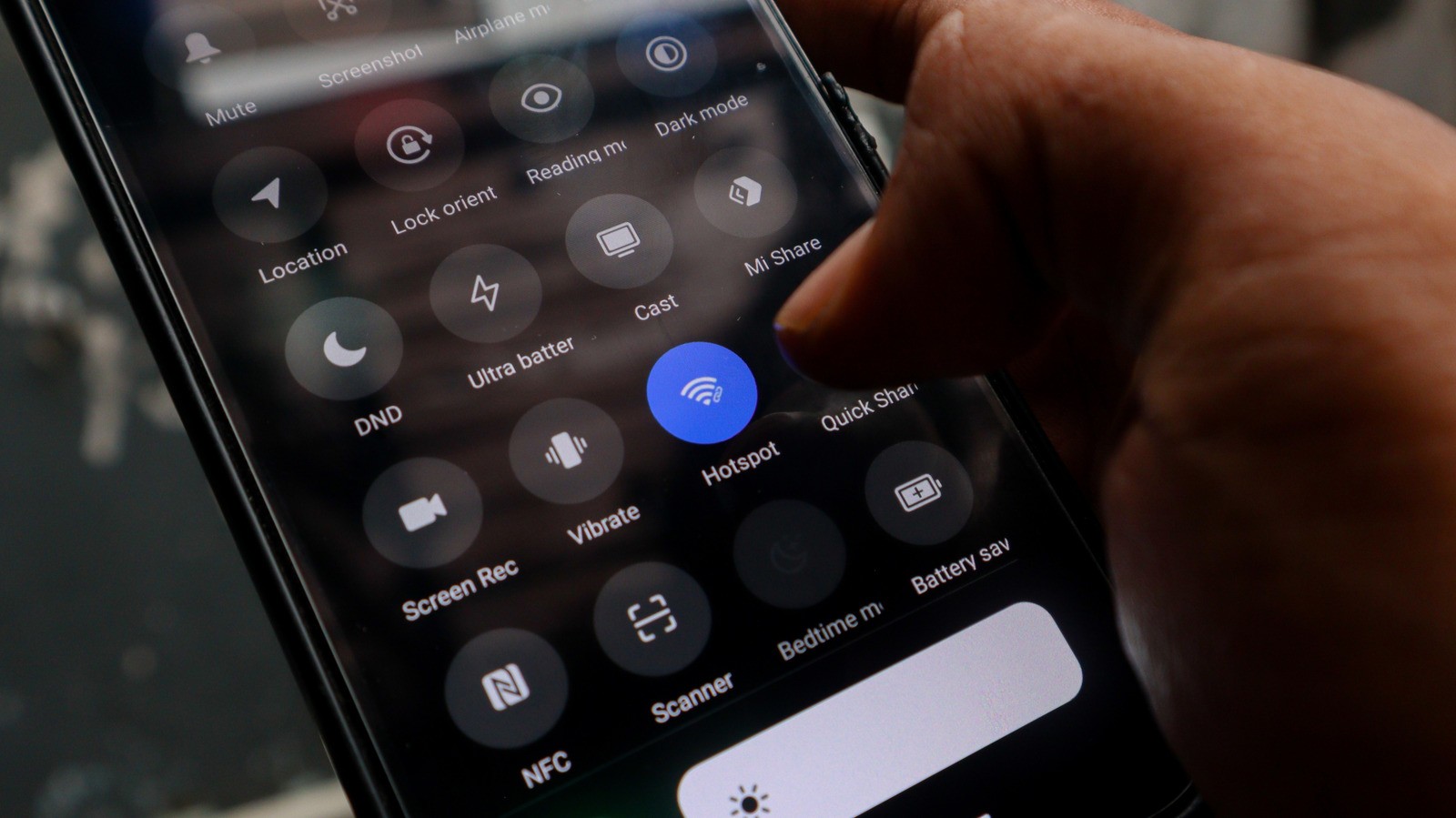
Go to Settings > Hotspot and Tethering and toggle on Wi-Fi Hotspot. You can also find the Hotspot icon in the drop-down menu — you just need to know what all those Android status bar icons mean.
Tap the Wi-Fi hotspot to rename the network and set a strong password to secure your network and keep it easy to identify.
If your phone supports it, you can select 5GHz under the speed or band settings. This will improve performance for nearby devices, but it offers a shorter range than 2.4GHz.
Place your phone about halfway between your router and the dead zone you're worried about. Make sure it's near an outlet so you can easily keep it recharged. Old phones already have questionable battery life, and running a hotspot continuously will drain the battery fast.
The downside of this method is that the phone extends your existing Wi-Fi, but it won't boost your internet speed in any way. If your internet is already slow, the hotspot won't fix that. You also have to keep in mind that any commercial Wi-Fi extender or mesh node will outperform this Android-based solution.
Another thing to keep in mind when using this method is that there's no smart home integration to speak of. Dedicated Wi-Fi extenders often support smart home ecosystems and seamless roaming, while an Android hotspot creates a separate network, so some smart home devices may not connect to it reliably. Plus, you'll need to manually switch networks as you move around your home.
Open Settings, go to Network & Internet > Internet. Select your home Wi-Fi network and enter the password when prompted.
Go to Settings > Hotspot and Tethering and toggle on Wi-Fi Hotspot. You can also find the Hotspot icon in the drop-down menu — you just need to know what all those Android status bar icons mean.
Tap the Wi-Fi hotspot to rename the network and set a strong password to secure your network and keep it easy to identify.
If your phone supports it, you can select 5GHz under the speed or band settings. This will improve performance for nearby devices, but it offers a shorter range than 2.4GHz.
Place your phone about halfway between your router and the dead zone you're worried about. Make sure it's near an outlet so you can easily keep it recharged. Old phones already have questionable battery life, and running a hotspot continuously will drain the battery fast.
The downside of this method is that the phone extends your existing Wi-Fi, but it won't boost your internet speed in any way. If your internet is already slow, the hotspot won't fix that. You also have to keep in mind that any commercial Wi-Fi extender or mesh node will outperform this Android-based solution.
Another thing to keep in mind when using this method is that there's no smart home integration to speak of. Dedicated Wi-Fi extenders often support smart home ecosystems and seamless roaming, while an Android hotspot creates a separate network, so some smart home devices may not connect to it reliably. Plus, you'll need to manually switch networks as you move around your home.