


Default
Door staff@engadget.com (Alec Hively) - 11 Oct 2026
If Apple's home surveillance AI summary tool seems worth the investment, you can set up your new AI-enabled security system directly in your iPhone, iPad, or Mac. First, make sure your HomeKit Secure Video system is set up on your iPhone or iPad by going to Settings > your name > iCloud > Show All, > Home. If using a Mac, go to the Apple menu > System Settings > Your name, located at the top of the sidebar. From there, click iCloud > See All, Show All, or Show More Apps > Home.
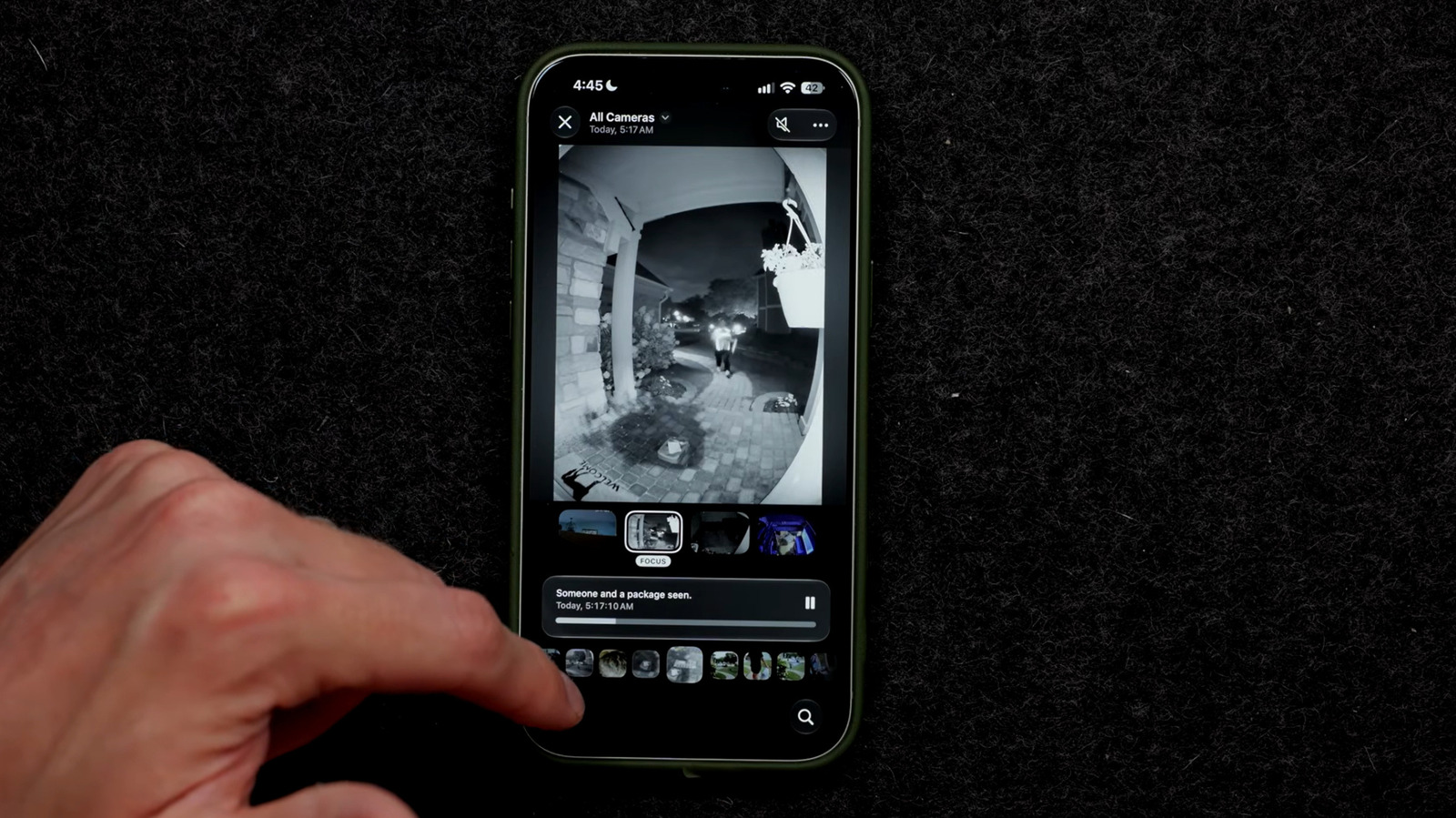
To enable Home camera video descriptions, go to your iPhone's Home app. Next, tap the Home tab, hit the three dotted icon and select Home Settings. Here, you can turn on Apple Intelligence. Once completed, you can choose which cameras you would like to enable or disable the video descriptions feature for.
If you want your HomeKit to recognize visitors from your camera roll, return to your iPhone's Home app. After adding your camera to your Home app's homepage, go to Recognize Familiar Faces, turn on Face Recognition, and tap Continue. To add recent visitors to your camera's catalog, go to the Home tab, tap the camera, and select the gear icon. Next, go to Face Recognition, tap the unidentified person in your Recent list, and tap Add Name. Here, you can add appropriate identifiers and even choose whether you'd like to be notified whenever said person enters your camera view.
To stop your smart home system from alerting you every time a racoon treks by, reduce your notifications through the Home app on your iPhone. Visit your system settings by going to Home > three dotted icon > Home Settings. Next, tap Apple Intelligence, and enable Reduce Notifications.
To enable Home camera video descriptions, go to your iPhone's Home app. Next, tap the Home tab, hit the three dotted icon and select Home Settings. Here, you can turn on Apple Intelligence. Once completed, you can choose which cameras you would like to enable or disable the video descriptions feature for.
If you want your HomeKit to recognize visitors from your camera roll, return to your iPhone's Home app. After adding your camera to your Home app's homepage, go to Recognize Familiar Faces, turn on Face Recognition, and tap Continue. To add recent visitors to your camera's catalog, go to the Home tab, tap the camera, and select the gear icon. Next, go to Face Recognition, tap the unidentified person in your Recent list, and tap Add Name. Here, you can add appropriate identifiers and even choose whether you'd like to be notified whenever said person enters your camera view.
To stop your smart home system from alerting you every time a racoon treks by, reduce your notifications through the Home app on your iPhone. Visit your system settings by going to Home > three dotted icon > Home Settings. Next, tap Apple Intelligence, and enable Reduce Notifications.