


Default
Door staff@engadget.com (Igor Bonifacic) - 07 Nov 2026
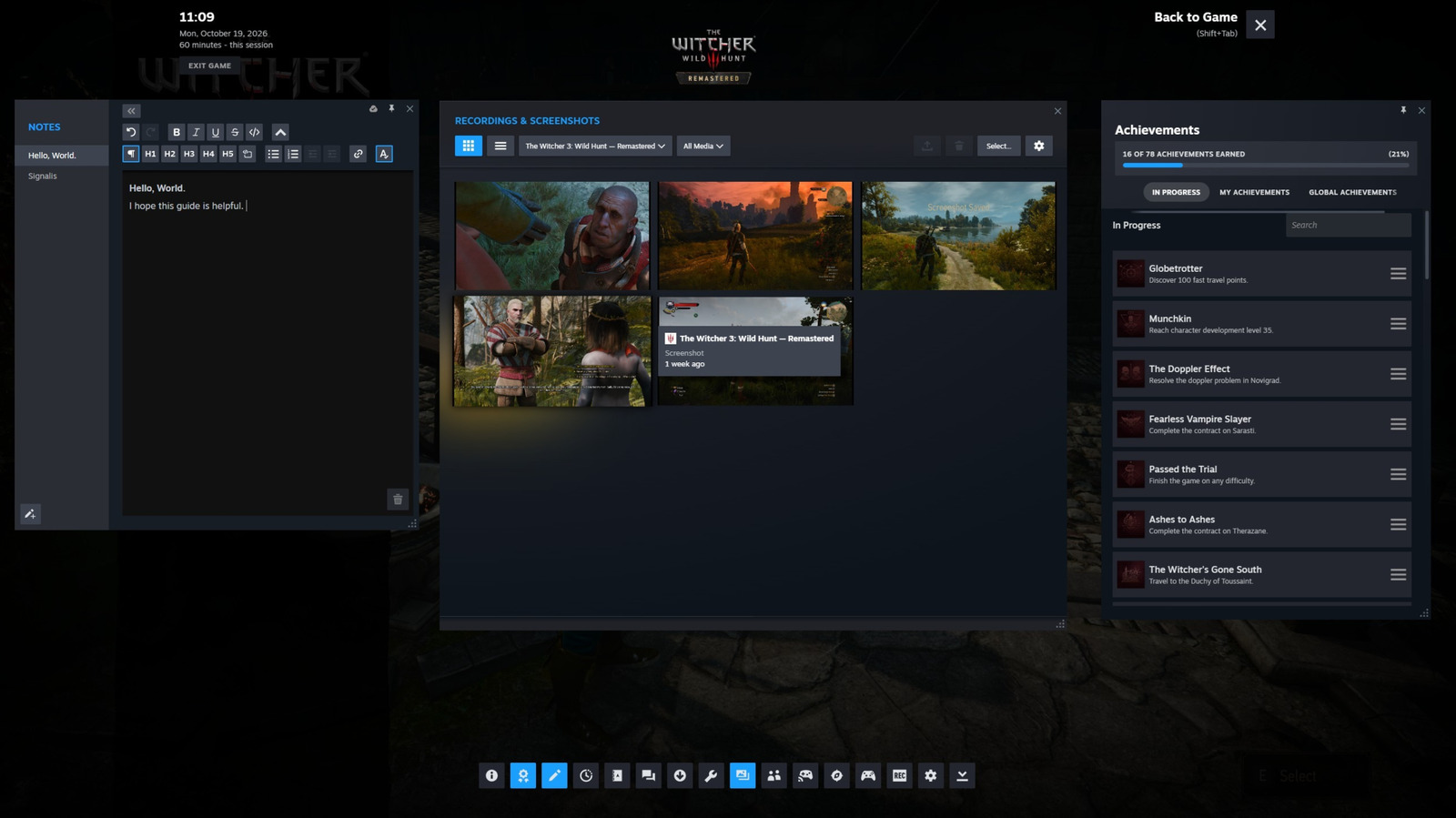
When you bring up the overlay, you'll find shortcuts for all the features I mention below along the bottom of the interface. Simply press one of them to bring up the feature you want to use.
Surf the web without leaving your game
I know what you're thinking: can't you just Alt-Tab out of a game to open your browser? While you certainly could do that, I find switching to Steam's built-in browser is a lot smoother since it's integrated directly into Valve's client. It's a great way to check something, such as how to tackle a quest you're having trouble with, without taking yourself out of a game completely. I'll also mention here that you can access Steam's often excellent community guides directly from the overlay, making them easy to reference, especially if you favorite one.
Write a note
If you're playing a puzzle game like Blue Prince or Tunic, being able to jot down notes as you try to piece together clues can make things so much easier. Steam's built-in text editor is fairly robust, allowing you to format text and write code blocks.
Set yourself a timer
Igor Bonifacic for Engadget
I don't know about you, but my gaming time is limited most days. I try to get around that by sneaking in gaming sessions whenever I can, which means I often only have 45 minutes or an hour before I need to be doing something else. For that reason, I find using the overlay to keep track of time and set timers really helpful.
Again, you could just use your smartphone to do that, but the beauty of doing things this way is you don't need to look at your phone. Bonus tip: you can pin any element of the overlay so that it appears in-game. This is particularly handy to do with the timer. And don't worry, if you do pin something, it won't appear in any screenshots you take directly through Steam.
Surf the web without leaving your game
I know what you're thinking: can't you just Alt-Tab out of a game to open your browser? While you certainly could do that, I find switching to Steam's built-in browser is a lot smoother since it's integrated directly into Valve's client. It's a great way to check something, such as how to tackle a quest you're having trouble with, without taking yourself out of a game completely. I'll also mention here that you can access Steam's often excellent community guides directly from the overlay, making them easy to reference, especially if you favorite one.
Write a note
If you're playing a puzzle game like Blue Prince or Tunic, being able to jot down notes as you try to piece together clues can make things so much easier. Steam's built-in text editor is fairly robust, allowing you to format text and write code blocks.
Set yourself a timer
Igor Bonifacic for Engadget
I don't know about you, but my gaming time is limited most days. I try to get around that by sneaking in gaming sessions whenever I can, which means I often only have 45 minutes or an hour before I need to be doing something else. For that reason, I find using the overlay to keep track of time and set timers really helpful.
Again, you could just use your smartphone to do that, but the beauty of doing things this way is you don't need to look at your phone. Bonus tip: you can pin any element of the overlay so that it appears in-game. This is particularly handy to do with the timer. And don't worry, if you do pin something, it won't appear in any screenshots you take directly through Steam.