


Default
Door staff@engadget.com (Thomas Godwin) - 15 Nov 2026
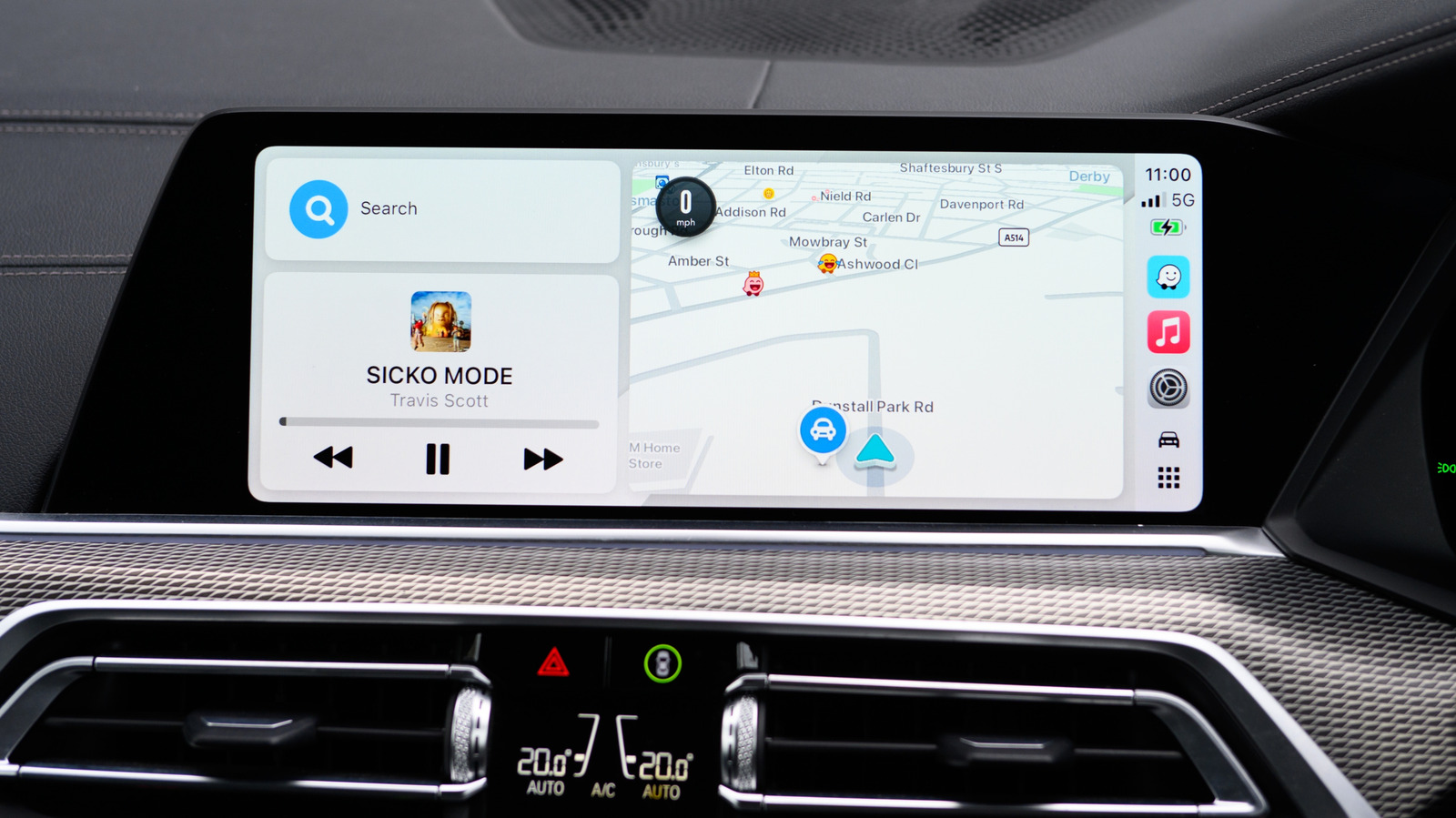
In Apple Maps, there is no camera switch to toggle on or off. Camera alerts are automatic in supported regions. Waze, a compatible CarPlay navigation app, turns camera alerts on by default. You have the option to fine-tune them as well. In the Waze app, open Settings > Alerts and Reports > Reports > Cameras. Each camera type has its own toggles for "Show on map" and "Alert while driving." Make sure any changes made in the Waze app take place before connecting to CarPlay, because Waze only applies them the next time you connect and go for a drive.
Google Maps is similar yet has slightly different settings. On CarPlay, tap "Report" to pinpoint a mobile speed camera so other drivers can see when using the app. If you want information provided by other drivers, open Google Maps in CarPlay and tap Settings > Alert options > All alerts.
Some navigation apps will send warning alerts without actively navigating, as long as the app is running passively in the background. Radarbot sends alerts for fixed and red light cameras through CarPlay if you have a Gold membership. Roadar adds Flock cameras to the mix, along with other license plate readers mixed in, with speed and red light camera alerts. If you're more concerned about Flock cameras, FlockHopper is free and works with CarPlay as well.
Google Maps is similar yet has slightly different settings. On CarPlay, tap "Report" to pinpoint a mobile speed camera so other drivers can see when using the app. If you want information provided by other drivers, open Google Maps in CarPlay and tap Settings > Alert options > All alerts.
Some navigation apps will send warning alerts without actively navigating, as long as the app is running passively in the background. Radarbot sends alerts for fixed and red light cameras through CarPlay if you have a Gold membership. Roadar adds Flock cameras to the mix, along with other license plate readers mixed in, with speed and red light camera alerts. If you're more concerned about Flock cameras, FlockHopper is free and works with CarPlay as well.